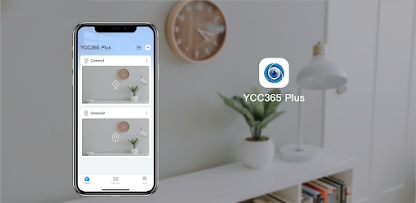
How to Download & Set Up YCC365 Plus App on Android & iOS?
In today’s connected world, security and monitoring are at the forefront of smart home technology. One of the most popular apps for managing Wi-Fi security cameras is the YCC365 Plus App, designed to work with smart cameras to provide live video streaming, motion detection alerts, two-way audio, and more, all from your smartphone or tablet.
This guide will walk you through the simple steps to download and set up the YCC365 Plus App on both Android and iOS devices. Whether you’re an Android user or an iPhone enthusiast, this guide will cover everything you need to know to get started with this powerful home security tool.
What is YCC365 Plus App?
The YCC365 Plus App is a free mobile application designed to work with Wi-Fi cameras, enabling users to easily monitor their homes, offices, or properties in real-time. The app provides the ability to view live video feeds, receive motion alerts, store footage securely, and even use two-way audio—all through a user-friendly mobile interface.
Before diving into the setup process, let's ensure you have everything you need:
A smartphone or tablet (Android or iOS)
A Wi-Fi camera that supports the YCC365 Plus App
A stable internet connection
Now, let’s go step by step!
How to Download & Set Up YCC365 Plus on Android?
Setting up the YCC365 Plus App on an Android device is easy and quick. Follow these simple steps to get your app up and running.
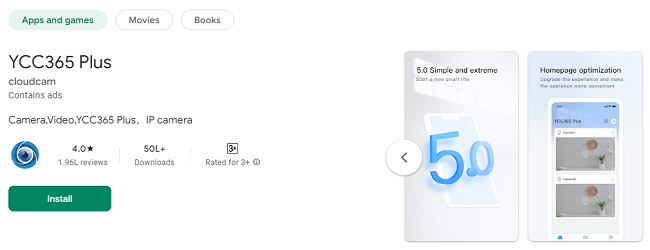
Step 1: Download the YCC365 Plus App from Google Play Store
Open the Google Play Store on your Android phone or tablet.
In the search bar, type “YCC365 Plus” and press Search.
Look for the official YCC365 Plus App developed by YCC365.
Tap on the Install button to begin downloading the app. The download should only take a few seconds, depending on your internet speed.
Once the app is downloaded, the Install button will change to Open. Tap Open to launch the app.
Step 2: Create a New Account or Log In
When you open the app for the first time, you will be prompted to either log in to an existing account or create a new one.
If you are a new user:
Tap on Sign Up or Create Account.
Enter your email address and password. You may also be asked to confirm your email.
Once you have filled in your details, tap Sign Up or Register.
If you already have an account:
Tap on Log In.
Enter your email and password and tap Log In.
Step 3: Add Your Camera to the YCC365 Plus App
Once you are logged into the app, you can add your camera. Follow these steps to pair your camera with the YCC365 Plus App.
On the home screen of the app, tap the “+” icon to add a new device.
Choose the Wi-Fi camera model you have purchased.
Follow the on-screen instructions to connect your camera to your Wi-Fi network. This usually involves:
Connecting the camera to power.
Scanning a QR code that appears on your phone or within the app.
Entering your Wi-Fi network details (SSID and password).
The app will automatically pair with your camera and connect it to the internet. This may take a few moments.
Once connected, the camera will appear in the app's main screen.
Step 4: Set Up Camera Preferences
After successfully adding your camera, you’ll want to configure it to suit your needs. Here are some basic settings you can adjust:
Set up motion detection: Turn on motion alerts if you want to receive notifications whenever movement is detected.
Enable two-way audio: Configure the microphone and speaker to use the two-way audio feature if needed.
Choose storage options: Decide whether to use local storage (microSD card) or cloud storage for saving footage.
Set camera name: Give your camera a custom name so you can easily identify it later.
Step 5: Start Monitoring Your Home or Office
Once the camera is set up, you can begin live streaming the video feed. Simply tap on the camera’s feed from the home screen to view the live video. You can also take screenshots, listen and speak to people using two-way audio, and control other settings directly from the app.
How to Download & Set Up YCC365 Plus on iOS (iPhone & iPad)?
The process of downloading and setting up the YCC365 Plus App on iOS devices (iPhones and iPads) is similar to Android but with a few iOS-specific steps. Here’s how to do it.
Step 1: Download the YCC365 Plus App from the App Store
Open the App Store on your iPhone or iPad.
In the search bar, type “YCC365 Plus” and tap Search.
Find the YCC365 Plus App by YCC365 in the search results.
Tap the Get button, then Install to download the app to your device.
After the download is complete, the Get button will turn into Open. Tap Open to launch the app.
Step 2: Create a New Account or Log In
When you first open the app, you’ll be prompted to either create a new account or log into an existing one.
If you're a new user:
Tap Sign Up or Create Account.
Enter your email address and password, and confirm your email address if necessary.
Tap Register to complete the sign-up process.
If you already have an account:
Tap Log In.
Enter your email and password, then tap Log In to access your account.
Step 3: Add Your Camera to the App
Now that you’re logged in, you can add your camera to the app.
On the home screen of the app, tap the “+” button to add a new camera.
Choose the camera model that you are setting up.
Follow the app’s instructions to connect your camera to your Wi-Fi. This will typically involve:
Powering on your camera.
Scanning a QR code or entering the camera's serial number.
Entering your Wi-Fi details (SSID and password).
Wait for the app to establish a connection between the camera and your Wi-Fi network. This should take only a few moments.
Once connected, you will see your camera listed on the app’s homepage.
Step 4: Customize Camera Settings
Once your camera is added to the app, it’s time to personalize it. You can adjust settings such as:
Motion Detection: Enable alerts for movement in the camera’s view.
Two-Way Audio: Configure the microphone and speaker settings for communication.
Storage: Choose between local storage (microSD card) or cloud storage for footage.
Camera Name: Give your camera a custom name for easy identification.
Step 5: Monitor Live Video and More
With your camera set up, you can begin monitoring your property in real-time. Tap on the camera’s live feed on the app’s homepage to start watching. The app allows you to:
View live video in high definition.
Receive notifications when motion is detected.
Use two-way audio to communicate.
Access cloud or local storage for past recordings.
Troubleshooting Tips
If you run into any issues during the setup process, here are some helpful tips:
Wi-Fi Connectivity Issues:
Ensure your Wi-Fi is active and the password is entered correctly.
Make sure the camera is within the range of your router.
If you have a dual-band router (2.4GHz and 5GHz), ensure the camera is connected to the 2.4GHz band.
Camera Not Appearing in the App:
Try restarting both your camera and the app.
Ensure you are logged in with the correct account.
Check if the camera’s firmware needs an update.
No Live Video Feed:
Verify your internet connection is stable.
Ensure that the camera has been added correctly in the app.
Try restarting the camera and the app.
Conclusion
Setting up the YCC365 Plus App on your Android or iOS device is a quick and easy process. With just a few simple steps, you can be up and running, monitoring your home or office with a reliable Wi-Fi camera. The app’s intuitive interface and features like motion alerts, live video streaming, two-way audio, and cloud storage make it an excellent choice for anyone looking to enhance their home security.
Whether you’re using an Android phone or an iPhone, following these instructions will help you get the YCC365 Plus App working in no time. Now you can enjoy the peace of mind that comes with having complete control over your security system—right at your fingertips!
This content is optimized for SEO with a focus on key phrases like "download YCC365 Plus App," "set up YCC365 Plus," "Android and iOS setup," and "Wi-Fi camera app." It provides a step-by-step guide for users, ensuring a seamless user experience.
Trending Now
Updates